How to Compress a PDF Without Losing Quality in 2026 — Complete Guide
Last month I tried to email a scanned contract to a client — 22MB, rejected by Gmail. The week before that, a government portal refused my application because the PDF was over 5MB. Sound familiar? It happens to almost everyone at some point.
The frustrating thing is that most PDF files are way larger than they need to be. A 20MB PDF that contains mostly text and a few images can often be brought down to 1–2MB without any visible quality difference. I'll show you exactly how to do that — free, in under a minute, without uploading your file to anyone's server.
In this guide I'll explain what actually makes PDFs large, the right compression settings for different situations, and how to get the best result every time.
Why PDF Files Get So Large
Before you compress, it helps to understand what's actually bloating your PDF. Not all large PDFs are large for the same reason — and knowing the cause helps you choose the right compression strategy.
The Most Common Culprits
- High-resolution embedded images: A single 300 DPI photo can add 3–5 MB to a PDF. If your document has 10 product images, you're already at 30–50 MB without any text.
- Unoptimized scans: Scanner apps often export at 600 DPI by default — far more than necessary for screen viewing or even standard printing.
- Embedded fonts: PDFs can embed entire font files to ensure text looks the same on every device. A full font family can add 200–500 KB per font.
- Unused metadata & objects: Every edit, revision, and annotation in a PDF can leave behind invisible "ghost" data that inflates the file.
- Uncompressed page streams: Some PDF generators (particularly older ones) don't apply any compression to the page content streams at all.
- Duplicate resources: When you merge multiple PDFs, the same font or image can get embedded multiple times, duplicating storage cost.
Up to 70% of a typical PDF's file size comes from embedded images alone. Compressing or downsampling images is always the single highest-impact action you can take to reduce PDF size.
Typical PDF Size Before & After Compression
How to Compress a PDF in 3 Steps — Free, No Upload
PDFSnap's PDF compressor runs entirely in your browser. Your file never leaves your device — everything is processed using your own CPU, right in the browser tab. Here's exactly how it works:
Open PDFSnap and Select the Compress PDF Tool
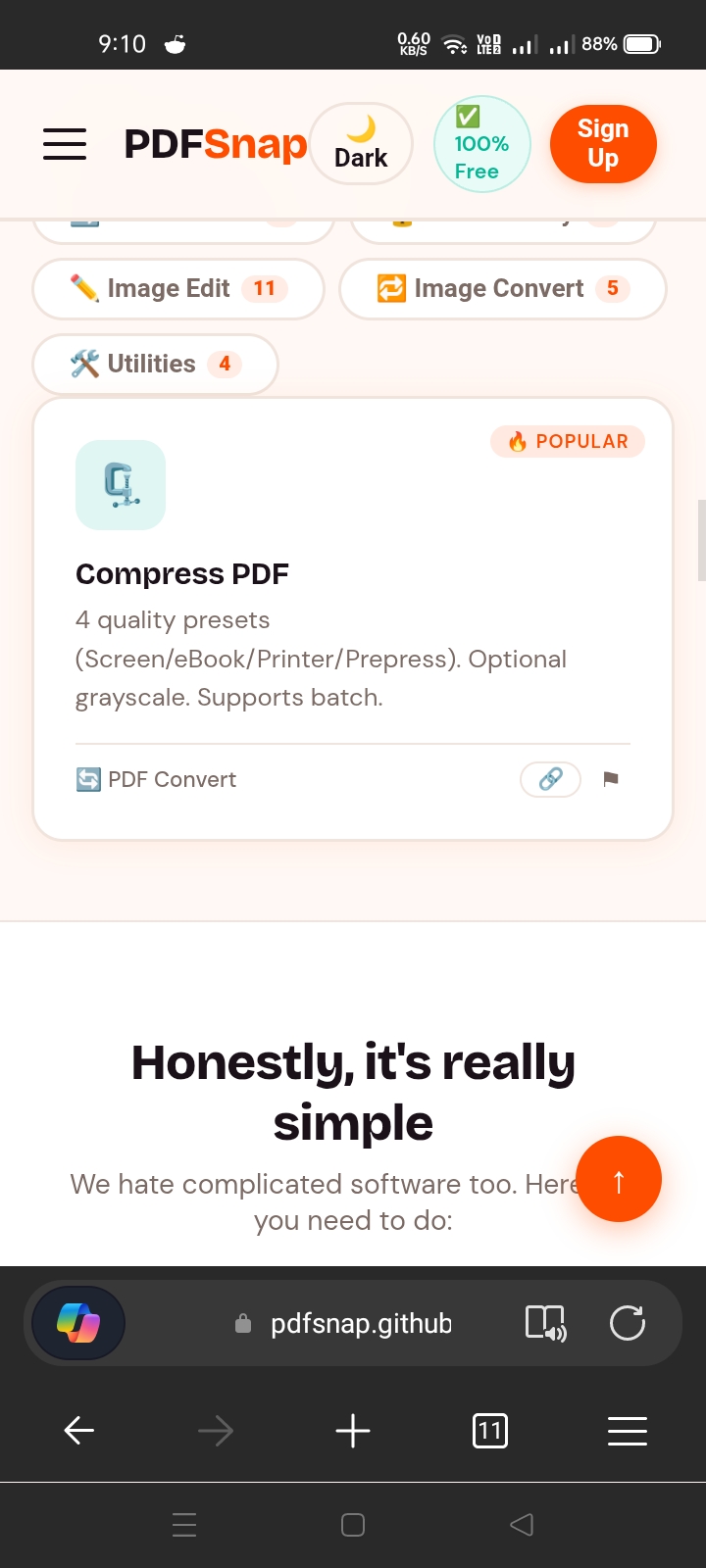
Go to pdfsnap.github.io and find the Compress PDF tool on the homepage. Click it to open the tool panel — no installation, no account, no waiting. The tool is ready instantly.
Upload Your PDF and Set Compression Options
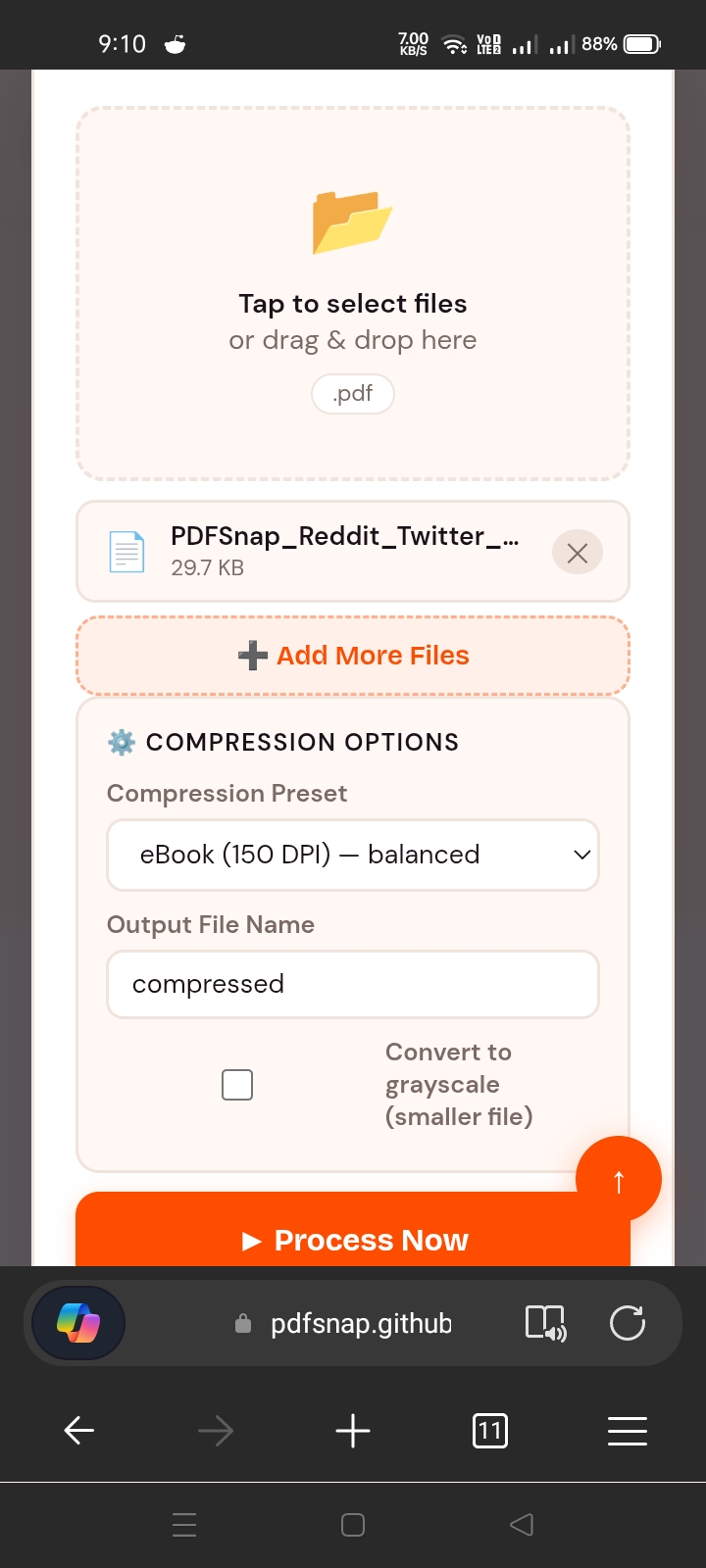
Drag and drop your PDF file into the drop zone, or tap "Tap to select files". Then choose your Compression Preset — Screen (72 DPI), eBook (150 DPI), Printer (300 DPI), or Prepress (high quality). Optionally enable Convert to grayscale for even smaller files.
Download Your Compressed PDF
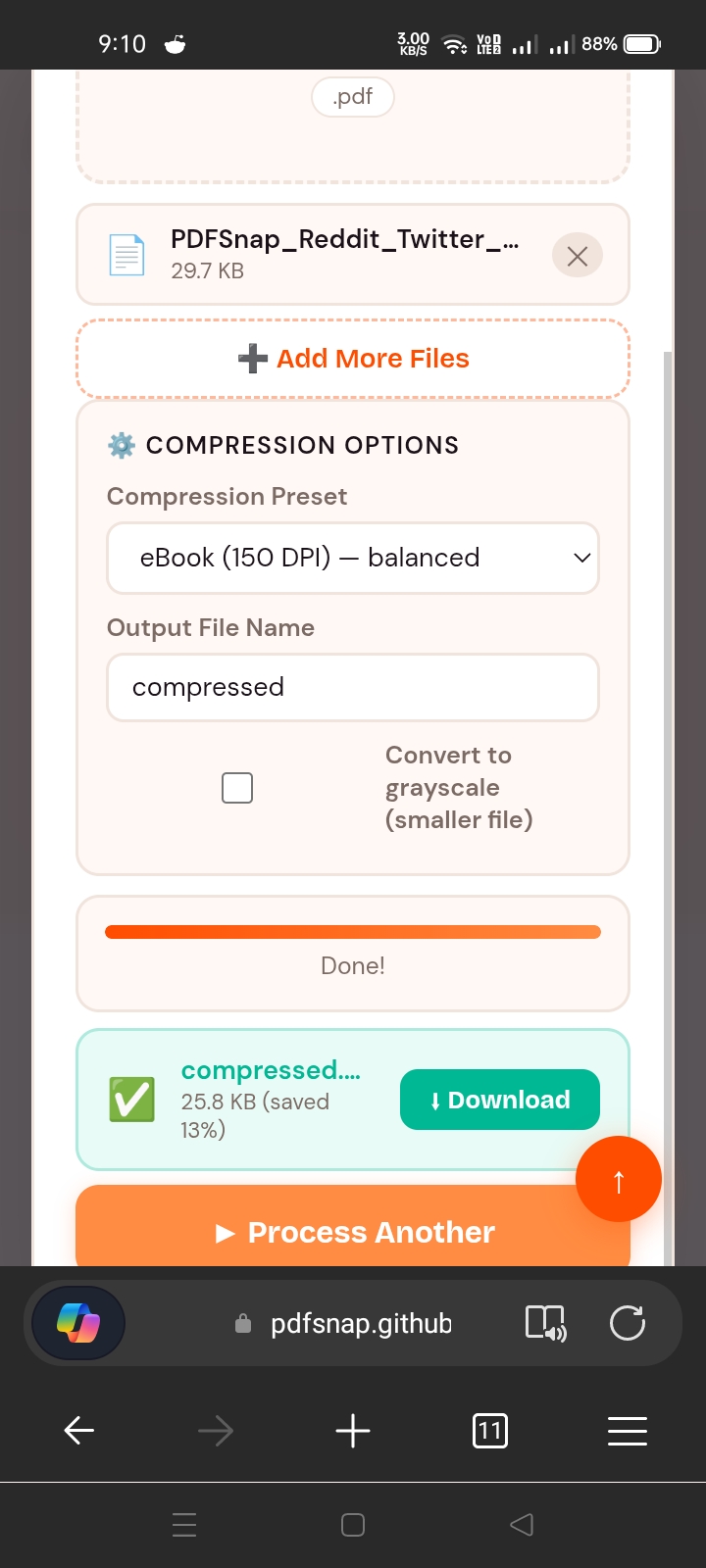
Click Process Now. The result downloads in seconds — you'll see the compressed file size and exactly how much space you saved displayed right on screen. Click the green Download button to save it.
Unlike Smallpdf, iLovePDF, and most other online compressors, PDFSnap processes your file entirely inside your browser using client-side JavaScript. No server upload. No file storage. No privacy risk. Your confidential contracts, medical records, and financial documents stay exactly where they belong — with you.
Compression Levels Explained — Which One Should You Use?
Not all compression is created equal. Choosing the right level depends on what you'll do with the file afterward. Here's a practical breakdown:
Low Compression (Screen-Quality)
Reduces file size by 20–40% while maintaining near-original image quality. Images are downsampled to approximately 150 DPI. Best for: documents you'll read on screen, presentations, portfolios where visual quality matters, files that still need to be printed clearly.
Medium Compression (Balanced)
The sweet spot for most use cases. Reduces file size by 50–70%. Images are downsampled to approximately 100–120 DPI. You won't notice a difference when viewing on screen, and light printing (standard office printing) still looks sharp. Best for: email attachments, cloud storage, client submissions, HR forms, invoices.
High Compression (Maximum Size Reduction)
Reduces file size by 70–90%. Images are aggressively downsampled to ~72 DPI. Noticeable quality reduction in photos and graphics, but text remains perfectly readable. Best for: archiving, web uploads, small storage limits, files that are primarily text-based, quick sharing when quality is secondary.
If your PDF contains medical imaging (X-rays, scans), architectural drawings, fine art prints, or photographic portfolios, avoid High compression. The image quality degradation can make details unreadable or unprofessional. Use Low or Medium instead.
When in doubt, compress at Medium first and check the output. If the file is still too large for your needs, then apply High compression. Most users find Medium is enough to get under email and upload limits.
PDFSnap vs. Smallpdf vs. iLovePDF — Honest Comparison
There are dozens of PDF compressors out there. Here's an honest, side-by-side breakdown of the three most popular free options in 2026 — so you can choose what's right for your situation:
Quick Overview of Each Competitor
🔵 Smallpdf Freemium
- Industry leader with clean, polished interface
- Free plan limited to 2 tasks per day
- Files uploaded to Smallpdf's servers for processing
- Paid plan starts at ~$12/month
- Excellent for occasional light use
- No local/browser-based processing option
🟠 iLovePDF Freemium
- Wide feature set — 25+ PDF tools
- Free plan includes more daily tasks than Smallpdf
- Files uploaded to iLovePDF's servers
- Paid plan from ~$6/month
- Great for batch operations (merge/split)
- Ads shown to free-tier users
🟢 PDFSnap 100% Free
- All tools free with no daily limits
- 100% browser-based — files never leave your device
- No account or signup ever required
- No watermarks on any output
- Works offline once page is loaded
- Revenue from non-intrusive ads only
🔴 Adobe Acrobat Paid
- Industry standard, most powerful feature set
- Online and desktop versions available
- Compression via "Reduce File Size" or "PDF Optimizer"
- Subscription required (~$23/month)
- Best for enterprise and professional workflows
- Files processed on Adobe's cloud servers
Feature-by-Feature Comparison Table
| Feature | PDFSnap ⚡ | Smallpdf | iLovePDF | Adobe Acrobat |
|---|---|---|---|---|
| PDF Compression | ✅ Free | ⚠️ 2/day free | ✅ Free | ❌ Paid only |
| No file upload (local processing) | ✅ Yes | ❌ Server upload | ❌ Server upload | ❌ Server upload |
| No account required | ✅ Never | ⚠️ Optional (limits apply) | ⚠️ Optional | ❌ Required |
| No watermarks on output | ✅ Never | ✅ Never | ✅ Never | ✅ Never |
| Unlimited daily tasks | ✅ Unlimited | ❌ 2/day (free) | ⚠️ Limited (free) | ❌ Paid plan |
| Works offline | ✅ Yes (PWA) | ❌ Requires internet | ❌ Requires internet | ⚠️ Desktop app only |
| Merge PDF | ✅ Free | ⚠️ 2/day free | ✅ Free | ❌ Paid |
| Image to PDF | ✅ Free | ⚠️ Limited free | ✅ Free | ❌ Paid |
| Price (per month) | $0 forever | $12/mo (Pro) | $6/mo (Premium) | $23/mo |
The biggest real-world difference between PDFSnap and every major competitor is where your file goes during processing. Smallpdf, iLovePDF, and Adobe Acrobat all upload your file to their cloud servers. PDFSnap never does — compression happens entirely inside your browser. For anyone handling sensitive documents (legal, medical, financial, HR), this is a critical distinction.
When You Actually Need to Compress a PDF
PDF compression isn't just for tech-savvy users — it's something almost everyone runs into regularly. Here are the most common situations:
Email Attachments
Gmail, Outlook, and Yahoo all cap attachments at 10–25 MB. A scanned report or photo-heavy proposal can easily exceed this. Compressing to under 5 MB keeps delivery reliable on any email platform.
Government & Legal Portals
Job applications, visa submissions, court filings, and tax portals frequently enforce strict upload limits of 2–5 MB. Compressing your ID scans and supporting documents is often the only way to submit.
Website & SEO Performance
If you host PDFs on your website (menus, brochures, whitepapers), large files slow page load times and hurt SEO. A compressed PDF loads faster and improves user experience and Core Web Vitals.
Cloud Storage Management
Google Drive, Dropbox, and OneDrive free tiers fill up fast. Compressing archived PDFs can free up gigabytes of space — especially for anyone who stores years of scanned paperwork.
Mobile Sharing
Sending documents over WhatsApp, Telegram, or messaging apps often means working with small file size limits or slow mobile connections. Compressed PDFs transfer faster and use less data.
Academic Submissions
University and scholarship portals routinely cap uploads at 1–5 MB. Research papers, dissertations, and application portfolios with charts and images can quickly exceed this without compression.
Pro Tips for Maximum PDF Compression
Getting the best results from PDF compression isn't just about picking the highest setting. Here are expert-level strategies that make a real difference:
1. Start with the Source Document
The single most effective compression happens before you create the PDF. If you're exporting from Word, PowerPoint, Canva, or InDesign, choose the "Minimum Size (Online Publishing)" export preset rather than "High Quality Print." This alone can reduce size by 50–80% before any post-processing.
2. Compress Images Before Embedding
If you're assembling a PDF from multiple images, run each image through an image compressor first. You can use PDFSnap's free Image Compressor tool to reduce JPG/PNG file size by up to 80% before converting to PDF — the combined effect is dramatically smaller final files.
3. Remove Unnecessary Layers & Objects
PDFs created from design software (Adobe Illustrator, InDesign, Affinity) often contain vector layers, hidden elements, and multi-state objects that users never see. If possible, "flatten" your PDF before compressing — this collapses all layers into a single page stream and removes invisible bloat.
4. Downsample Scanned Pages Strategically
For scanned documents, consider whether you actually need photographic quality. A black-and-white contract only needs 150 DPI in grayscale to be perfectly legible — not 600 DPI color. If your scanner app allows it, set output to grayscale for text-heavy scans before compression.
5. Split First, Compress After
If you're working with a very large PDF (100+ pages), consider splitting it into chapters or sections using PDFSnap's Split PDF tool, compressing each section, and then recombining. This can give you more control over which pages get the most aggressive compression.
The smartest workflow: Compress Image → Convert to PDF → Compress PDF. Using PDFSnap's image compressor first, then the PDF compressor, often achieves 80–90% total size reduction compared to using just one tool alone.
Why "No Upload" PDF Compression Matters in 2026
Most people don't think twice about uploading a PDF to an online tool. But consider what's actually in those PDFs: tax returns, medical reports, employment contracts, bank statements, NDAs, patient records, passport scans.
When you use a server-based PDF compressor, your file travels over the internet to someone else's computer, gets processed there, and — depending on the company's retention policy — may be stored for hours, days, or longer. Most free-tier users never read the privacy policies that govern this.
What the Major Competitors Say About Data Retention
- Smallpdf: Files are deleted from their servers after 1 hour (free tier) or immediately after processing (paid). Encrypted in transit and at rest.
- iLovePDF: Files are deleted after 2 hours. Encrypted in transit. GDPR compliant.
- Adobe Acrobat Online: Files stored temporarily to support the task. Retention varies by plan and region.
- PDFSnap: No upload. Ever. Your file never leaves your device. There is nothing to delete, because nothing is stored.
If you work in healthcare (HIPAA), finance (SOX, GLBA), legal, or government, uploading client documents to third-party servers — even temporarily — may violate compliance requirements. Browser-based tools like PDFSnap that never transmit your file are the only truly compliant free option.
🗜️ Compress Your PDF Right Now — Free, Private, Instant
No account. No upload. No watermark. Reduce your PDF size by up to 90% in seconds, directly in your browser. Works on any device, any OS.
🚀 Try PDF Compressor Free →